How to Control a NEMA 17 Stepper Motor with the A4988 Driver
Stepper motors are widely used in robotics, CNC machines, 3D printers, and many other DIY electronics projects. Unlike ordinary DC motors, stepper motors can rotate in precise increments, making them ideal for applications that require accurate positioning and controlled movement.
In this tutorial, we will learn how to control a NEMA 17 stepper motor using an Arduino or any Compatible Board and an A4988 stepper motor driver, which is one of the most popular and cost-effective drivers for bipolar stepper motors. It simplifies complex motor control into a straightforward two-wire interface (STEP and DIR) while offering microstepping for smoother, quieter operation.
🛠️ What You Will Need
Before starting, gather the following components. The capacitor is not optional; it protects the driver from destructive voltage spikes.
| Component | Quantity | Notes |
|---|---|---|
| Arduino or Any ESP Board | 1 | 5V logic board works |
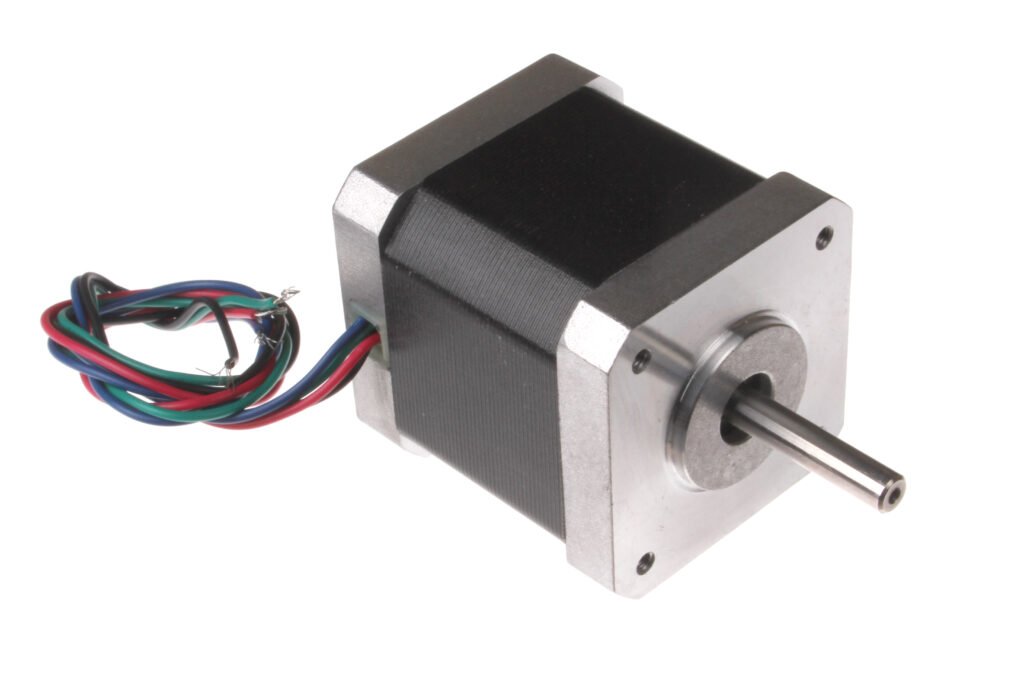
| NEMA 17 Stepper Motor | 1 | A standard bipolar motor (e.g., 1.8°, 200 steps/rev) |
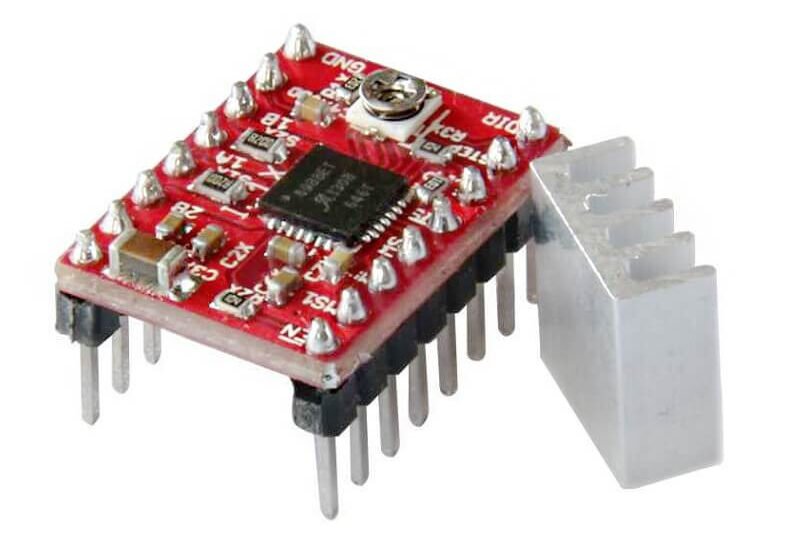
| A4988 Driver Module | 1 | Often includes a heatsink |
| (100-400)µF Capacitor | 1 | Critical for protecting the driver |
| 12V DC Power Supply | 1 | 8V–35V is the driver’s range; 12V is common |
| Jumper Wires & Breadboard | – | For connections |
🔌 Understanding the A4988 Pinout
The A4988 board has pins on both sides. Here is a breakdown of the essential connections:
- VMOT & GND (Motor Power): Connect your external 12V power supply here. Do not power the motor from the Arduino’s 5V pin; it cannot supply enough current.
- VDD & GND (Logic Power): Connect to the Arduino’s 5V and GND. This powers the driver’s internal logic.
- 1A, 1B, 2A, 2B (Motor Outputs): These connect to the four wires of your stepper motor coils. The pairing is crucial (Coil 1 to 1A/1B, Coil 2 to 2A/2B).
- STEP & DIR (Control Inputs): The heart of the interface. A pulse on STEP moves the motor one increment. The DIR pin sets the rotation direction (High = Clockwise, Low = Counter-Clockwise) .
- MS1, MS2, MS3 (Microstepping): These pins let you change the resolution from full-step to 1/16-step .
- ENABLE: Pulling this pin High disables the motor outputs (it is pulled Low by default, meaning it is always enabled unless you tell it otherwise) .
- SLEEP & RESET: To use the driver, these two pins must be pulled High. The easiest way is to connect them together and then to the 5V logic supply .
📐 Wiring Diagram and Connections
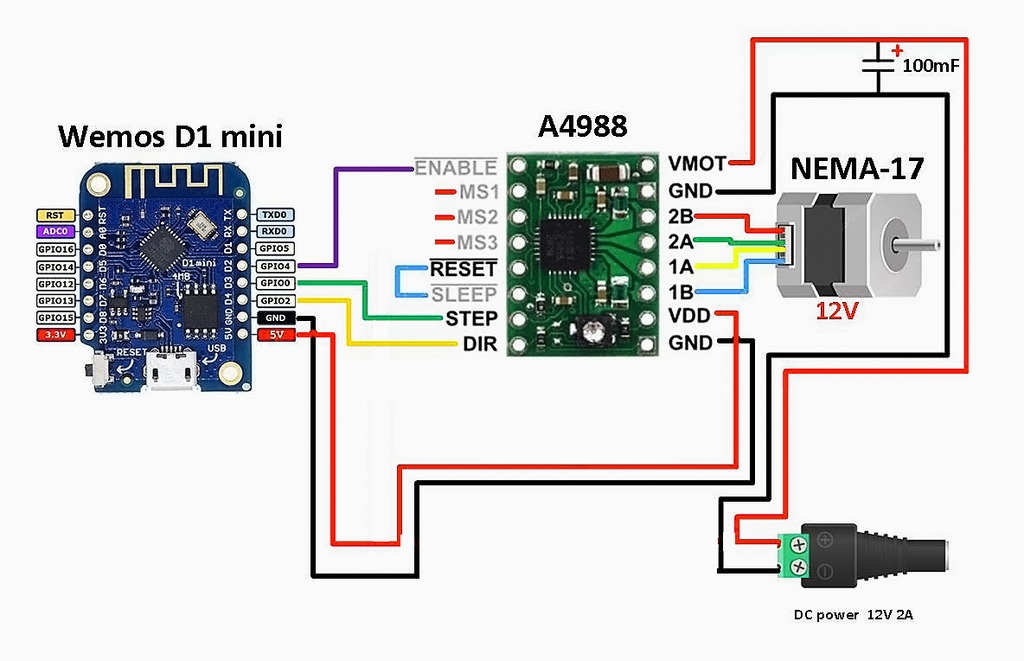
Here is how to wire the system for a standard 1/16th microstep configuration (which requires no jumper wires on the MS pins, as they are pulled high internally by default).
1. Power Connections (Be Careful Here)
- Connect the 12V Power Supply Positive (+) to VMOT.
- Connect the 12V Power Supply Negative (-) to GND (next to VMOT).
- Add a 100µF capacitor across VMOT and GND, paying attention to polarity (the stripe on the capacitor marks the negative leg).
- Connect the Microcontroller 5V to VDD.
- Connect the Microcontroller GND to GND (next to VDD).
2. Motor Connections
- Identify your motor coil pairs. Use a multimeter to check continuity; wires with low resistance belong to the same coil.
- Connect Coil 1 to 1A and 1B.
- Connect Coil 2 to 2A and 2B.
- Note: If the motor vibrates but doesn’t spin, you likely have the coil pairs mixed up.
3. Control Connections
- Connect GPIO Pin 0 to STEP
- Connect GPIO Pin 1 to DIR
- Connect SLEEP to RESET
⚠️ The Critical Step: Setting the Current Limit
Do not skip this step. The A4988 can deliver up to 2A per coil, but if you don’t limit the current to match your specific motor, it will overheat and shut down (or destroy itself). You must adjust the small potentiometer on the board.
Formula: The reference voltage (Vref) you measure is proportional to the current limit.
How to do it:
- Power the Microcontroller (Arduino or ESP) and the 12V motor supply (but do not run the motor yet).
- Place your multimeter in DC voltage mode. Connect the positive probe to the metal screw slot of the potentiometer, and the negative probe to a GND pin on the driver.
- Check your motor’s datasheet for its rated current per phase (e.g., 1.5A).
- Calculate your target Vref. For a 1.5A motor:
1.5 / 2.5 = 0.6V. - Use a small screwdriver to turn the potentiometer until your multimeter reads exactly 0.6V (or your calculated value) .
💻 Arduino Code Example
This simple sketch will spin the motor one full revolution clockwise, pause, and then spin it one full revolution counter-clockwise.
cpp
// Define pins
const int stepPin = D3;
const int dirPin = D4;

// Motor specs
const int stepsPerRevolution = 200; // Standard NEMA 17 is 200 steps/rev
const int microstepMode = 1;       // We are using 1/16 mode
const int totalSteps = stepsPerRevolution * microstepMode; // 3200 pulses per rev

void setup() {
  pinMode(stepPin, OUTPUT);
  pinMode(dirPin, OUTPUT);
  // Optional: If you wired SLEEP/RESET to a pin, set it HIGH here
  // pinMode(8, OUTPUT);
  // digitalWrite(8, HIGH);
}

void loop() {
  // --- Rotate Clockwise ---
  digitalWrite(dirPin, HIGH);
  for (int i = 0; i < totalSteps; i++) {
    digitalWrite(stepPin, HIGH);
    delayMicroseconds(500); // Speed control: smaller = faster
    digitalWrite(stepPin, LOW);
    delayMicroseconds(500);
  }
  delay(1000); // Pause for 1 second

  // --- Rotate Counter-Clockwise ---
  digitalWrite(dirPin, LOW);
  for (int i = 0; i < totalSteps; i++) {
    digitalWrite(stepPin, HIGH);
    delayMicroseconds(500);
    digitalWrite(stepPin, LOW);
    delayMicroseconds(500);
  }
  delay(1000); // Pause for 1 second
}
⚙️ How Microstepping Changes Things
By default (with MS pins floating or tied High), the A4988 uses 1/16 step mode. This means the motor needs 3200 pulses for a full revolution instead of 200, giving you much finer control and smoother motion.
If you want to change the mode, you can connect the MS pins to GND (Low) or 5V (High) according to this table:
| MS1 | MS2 | MS3 | Resolution |
|---|---|---|---|
| Low | Low | Low | Full Step |
| High | Low | Low | 1/2 Step |
| Low | High | Low | 1/4 Step |
| High | High | Low | 1/8 Step |
| High | High | High | 1/16 Step |
🔍 Troubleshooting Common Issues
- Motor vibrates but does not spin: Almost always a wiring issue. Ensure the two wires from the same coil go to 1A/1B and the other pair goes to 2A/2B. Swap one pair if necessary.
- Motor gets very hot / shuts down: Your current limit (Vref) is set too high. Power down and adjust the potentiometer to lower the Vref.
- Motor skips steps or stutters: This can be caused by trying to accelerate too fast (the
delayMicrosecondsvalue is too low) or by the current limit being set too low for the load. - Nothing happens: Check the SLEEP and RESET pins. They must be tied to 5V for the driver to operate. Also, verify the ENABLE pin is not pulled High (it should be Low or floating).
Project Ideas Using a NEMA 17
Once you can control the motor’s direction, speed, and step count, you can use it in more advanced projects.
- Automatic camera slider: Move a camera smoothly along a rail.
- Rotating display stand: Rotate a platform through a defined angle.
- Mini CNC machine: Control an axis with a suitable mechanical transmission.
- Arduino robot: Control the position of a joint or mechanism.
- Automated blinds: Move a suitable mechanism between programmed positions.
- 3D printer project: Explore how stepper motors move the printer’s axes and extruder.
For projects requiring reliable absolute positioning, add homing sensors or encoders where appropriate.
Conclusion
Controlling a NEMA 17 stepper motor with an Arduino and an A4988 driver is a practical way to learn about motion control and embedded electronics.
The essential steps are to identify the motor’s coils, connect the driver correctly, configure the current limit, and generate STEP pulses while controlling the DIR signal.
Once the basic circuit works, you can experiment with speed, step count, microstepping, limit switches, and more advanced motion-control libraries.
Remember that the motor’s performance depends on the motor specifications, driver capabilities, power supply, cooling, and mechanical load. Configure these components correctly before increasing the speed or attempting more demanding movements.
With this foundation, you can build a wide range of Arduino projects that require precise, repeatable movement.