ESP32-CAM: Capture & Send Photos via Email (Complete Guide)
The ESP32-CAM is a powerful yet affordable development board with a built-in camera. In this new guide, you’ll learn how to capture a photo with the ESP32-CAM and send it as an email attachment using the ESP Mail Client library.
To save power, the device enters deep sleep mode after sending the email and wakes up when triggered (e.g., by a button or PIR sensor).
⚠️ Important: if you haven’t installed the ESP32 board package yet, follow my ESP32-CAM Getting Started Guide before continuing.
🧰 Components Required
- ESP32-CAM Module: The most common variant is the AI-Thinker model.
- USB-to-Serial Adapter: An FTDI programmer (or any adapter with a CH340 chip) is required to connect the board to your computer. *Note: If you purchase an ESP32-CAM-MB board, it comes with a built-in USB interface, making this adapter unnecessary
- Jumper Wires: Female-to-female wires needed to connect the FTDI adapter to the ESP32-CAM pins.
- Power Supply: During Wi-Fi transmission, the board draws significant current. An unstable USB port might cause crashes. A dedicated 5V power supply (at least 2A) is recommended for stable operation.
- Push button or PIR sensor (optional – for wakeup)
If you want to follow along with my projects, I highly recommend getting a complete ESP32 + Cam starter kit. It will save you time, money, and frustration—and help you learn IoT much faster.
🔌 Wiring (Programming Mode)
You must use an FTDI to program your ESP32-Cam board:
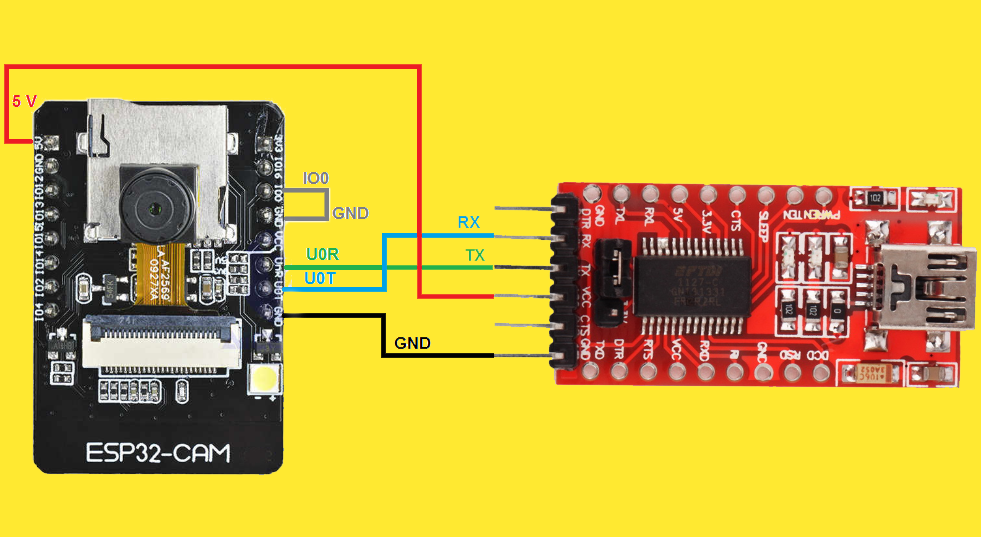
Connections:
| FTDI | ESP32-CAM |
|---|---|
| 5V (5V Jumper Trigger) | 5V (Use 5V, not 3.3V) |
| GND | GND |
| TX | U0R |
| RX | U0T |
| GND → IO0 (for flashing mode) |
Important:
Connecting IO0 to GND puts the ESP32-CAM into “flashing mode“. You must have this connection made before powering on the board to upload new code. Once the upload is complete, you must disconnect IO0 from GND and press the reset button to run the program normally.
🔐 Configure SMTP Server
SMTP (Simple Mail Transfer Protocol) is the standard protocol for sending emails. Your ESP32 will act as an SMTP client, connecting to an SMTP server to deliver messages.
Choosing an Email Provider
| Provider | SMTP Server | Port (SSL) | Port (TLS) | Special Notes |
|---|---|---|---|---|
| Gmail | smtp.gmail.com | 465 | 587 | Requires App Password |
| Outlook | smtp-mail.outlook.com | 465 | 587 | Works with a regular password |
| Yahoo | smtp.mail.yahoo.com | 465 | 587 | Requires App Password |
| Zoho | smtp.zoho.com | 465 | 587 | Business accounts only |
For Gmail:
SMTP Host: smtp.gmail.com

Port: 465
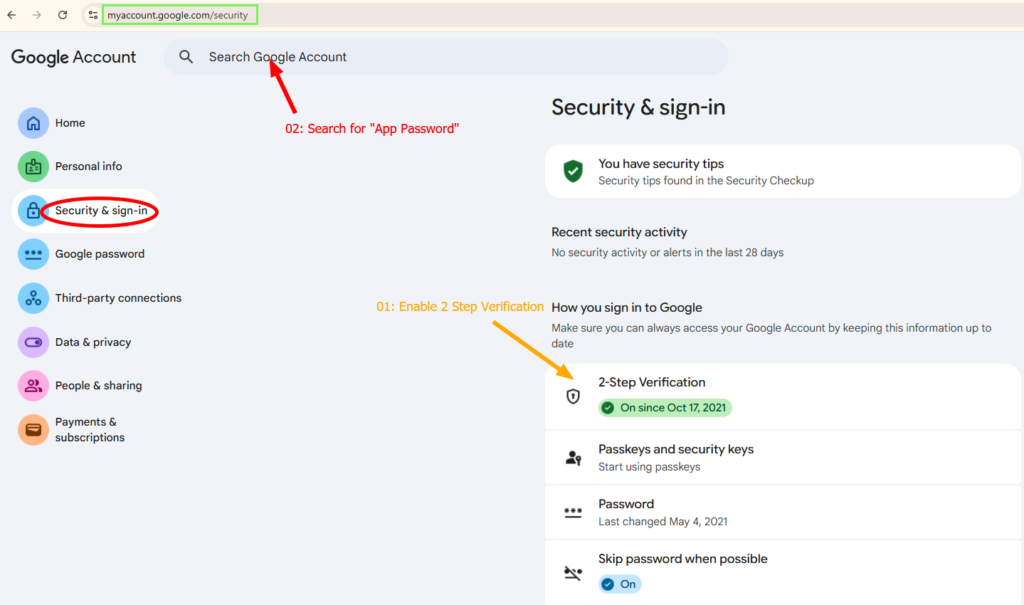
You have to create a new Gmail account and go to: https://myaccount.google.com/security
- Enable 2-Step Verification
- Generate an App Password by Searching for App Password
- Use the App Password in your code
💻 Complete Code:
// Include libraries
#include "esp_camera.h"
#include "SPI.h"
#include "driver/rtc_io.h"
#include "soc/rtc_cntl_reg.h"
#include <ESP_Mail_Client.h>
#include <FS.h>
#include <WiFi.h>

// REPLACE WITH YOUR NETWORK CREDENTIALS
const char* ssid = "YOUR_SSID";
const char* password = "YOUR_PASSWORD";

// To send Email using Gmail use port 465 (SSL) and SMTP Server smtp.gmail.com
// You need to create an email app password
#define emailSenderAccount    "SENDER_EMAIL@gmail.com"
#define emailSenderPassword   "YOUR_EMAIL_APP_PASSWORD"
#define smtpServer            "smtp.gmail.com"
#define smtpServerPort        465
#define emailSubject          "ESP32-CAM Photo Captured"
#define emailRecipient        "YOUR_EMAIL_RECIPIENT@example.com"


#define CAMERA_MODEL_AI_THINKER

#if defined(CAMERA_MODEL_AI_THINKER)
  #define PWDN_GPIO_NUM     32
  #define RESET_GPIO_NUM    -1
  #define XCLK_GPIO_NUM      0
  #define SIOD_GPIO_NUM     26
  #define SIOC_GPIO_NUM     27
  #define Y9_GPIO_NUM       35
  #define Y8_GPIO_NUM       34
  #define Y7_GPIO_NUM       39
  #define Y6_GPIO_NUM       36
  #define Y5_GPIO_NUM       21
  #define Y4_GPIO_NUM       19
  #define Y3_GPIO_NUM       18
  #define Y2_GPIO_NUM        5
  #define VSYNC_GPIO_NUM    25
  #define HREF_GPIO_NUM     23
  #define PCLK_GPIO_NUM     22
#else
  #error "Camera model not selected"
#endif

/* The SMTP Session object used for Email sending */
SMTPSession smtp;

/* Callback function to get the Email sending status */
void smtpCallback(SMTP_Status status);

// Photo File Name to save in LittleFS
#define FILE_PHOTO "photo.jpg"
#define FILE_PHOTO_PATH "/photo.jpg"

void setup() {
  WRITE_PERI_REG(RTC_CNTL_BROWN_OUT_REG, 0); //disable brownout detector
  pinMode(GPIO_NUM_4, OUTPUT);

  Serial.begin(115200);
  Serial.println();

  // Connect to Wi-Fi
  WiFi.begin(ssid, password);
  Serial.print("Connecting to WiFi...");
  while (WiFi.status() != WL_CONNECTED) {
    delay(500);
    Serial.print(".");
  }
  Serial.println();

  // Print ESP32 Local IP Address
  Serial.print("IP Address: http://");
  Serial.println(WiFi.localIP());

  // Init filesystem
  ESP_MAIL_DEFAULT_FLASH_FS.begin();

  camera_config_t config;
  config.ledc_channel = LEDC_CHANNEL_0;
  config.ledc_timer = LEDC_TIMER_0;
  config.pin_d0 = Y2_GPIO_NUM;
  config.pin_d1 = Y3_GPIO_NUM;
  config.pin_d2 = Y4_GPIO_NUM;
  config.pin_d3 = Y5_GPIO_NUM;
  config.pin_d4 = Y6_GPIO_NUM;
  config.pin_d5 = Y7_GPIO_NUM;
  config.pin_d6 = Y8_GPIO_NUM;
  config.pin_d7 = Y9_GPIO_NUM;
  config.pin_xclk = XCLK_GPIO_NUM;
  config.pin_pclk = PCLK_GPIO_NUM;
  config.pin_vsync = VSYNC_GPIO_NUM;
  config.pin_href = HREF_GPIO_NUM;
  config.pin_sccb_sda = SIOD_GPIO_NUM;
  config.pin_sccb_scl = SIOC_GPIO_NUM;
  config.pin_pwdn = PWDN_GPIO_NUM;
  config.pin_reset = RESET_GPIO_NUM;
  config.xclk_freq_hz = 20000000;
  config.pixel_format = PIXFORMAT_JPEG;
  config.grab_mode = CAMERA_GRAB_LATEST;

  if(psramFound()){
    config.frame_size = FRAMESIZE_UXGA;
    config.jpeg_quality = 10;
    config.fb_count = 1;
  } else {
    config.frame_size = FRAMESIZE_SVGA;
    config.jpeg_quality = 12;
    config.fb_count = 1;
  }

  // Initialize camera
  esp_err_t err = esp_camera_init(&config);
  if (err != ESP_OK) {
    Serial.printf("Camera init failed with error 0x%x", err);
    return;
  }

  takePhoto();
  sendPhoto();

  // Bind Wakeup to GPIO13 going LOW
  pinMode(GPIO_NUM_13, INPUT_PULLUP);

  esp_sleep_enable_ext0_wakeup(GPIO_NUM_13, 0);

  Serial.println("Entering sleep mode");
  delay(1000);

  // Enter deep sleep mode
  esp_deep_sleep_start();
}

void loop() {

}

// Capture Photo and Save it to LittleFS
void takePhoto( void ) {
  // Dispose first pictures because of bad quality
  camera_fb_t* fb = NULL;
  // Skip first 3 frames (increase/decrease number as needed).
  for (int i = 0; i < 3; i++) {
    fb = esp_camera_fb_get();
    esp_camera_fb_return(fb);
    fb = NULL;
  }

  // Take a new photo
  digitalWrite(GPIO_NUM_4, HIGH);
  delay(300);
  fb = NULL;
  fb = esp_camera_fb_get();
  if(!fb) {
    Serial.println("Camera capture failed");
    delay(1000);
    ESP.restart();
  }
  delay(300);
  digitalWrite(GPIO_NUM_4, LOW);
  // Photo file name
  Serial.printf("Picture file name: %s\n", FILE_PHOTO_PATH);
  File file = LittleFS.open(FILE_PHOTO_PATH, FILE_WRITE);

  // Insert the data in the photo file
  if (!file) {
    Serial.println("Failed to open file in writing mode");
  }
  else {
    file.write(fb->buf, fb->len); // payload (image), payload length
    Serial.print("The picture has been saved in ");
    Serial.print(FILE_PHOTO_PATH);
    Serial.print(" - Size: ");
    Serial.print(fb->len);
    Serial.println(" bytes");
  }
  // Close the file
  file.close();
  esp_camera_fb_return(fb);
}

void sendPhoto( void ) {

  smtp.debug(1);

  /* Set the callback function to get the sending results */
  smtp.callback(smtpCallback);

  /* Declare the session config data */
  Session_Config config;

  /*Set the NTP config time */
  config.time.ntp_server = F("pool.ntp.org,time.nist.gov");
  config.time.gmt_offset = 0;
  config.time.day_light_offset = 1;

  /* Set the session config */
  config.server.host_name = smtpServer;
  config.server.port = smtpServerPort;
  config.login.email = emailSenderAccount;
  config.login.password = emailSenderPassword;
  config.login.user_domain = "";

  /* Declare the message class */
  SMTP_Message message;

  /* Enable the chunked data transfer with pipelining for large message if server supported */
  message.enable.chunking = true;

  /* Set the message headers */
  message.sender.name = "ESP32-CAM";
  message.sender.email = emailSenderAccount;

  message.subject = emailSubject;
  message.addRecipient("Chaker", emailRecipient);

  String htmlMsg = "<h2>Photo captured with ESP32-CAM:</h2>";
  message.html.content = htmlMsg.c_str();
  message.html.charSet = "utf-8";
  message.html.transfer_encoding = Content_Transfer_Encoding::enc_qp;

  message.priority = esp_mail_smtp_priority::esp_mail_smtp_priority_normal;
  message.response.notify = esp_mail_smtp_notify_success | esp_mail_smtp_notify_failure | esp_mail_smtp_notify_delay;

  /* The attachment data item */
  SMTP_Attachment att;

  /** Set the attachment info e.g.
   * file name, MIME type, file path, file storage type,
   * transfer encoding and content encoding
  */
  att.descr.filename = FILE_PHOTO;
  att.descr.mime = "image/png";
  att.file.path = FILE_PHOTO_PATH;
  att.file.storage_type = esp_mail_file_storage_type_flash;
  att.descr.transfer_encoding = Content_Transfer_Encoding::enc_base64;

  /* Add attachment to the message */
  message.addAttachment(att);

  /* Connect to server with the session config */
  if (!smtp.connect(&config))
    return;

  /* Start sending the Email and close the session */
  if (!MailClient.sendMail(&smtp, &message, true))
    Serial.println("Error sending Email, " + smtp.errorReason());
}

// Callback function to get the Email sending status
void smtpCallback(SMTP_Status status){
  /* Print the current status */
  Serial.println(status.info());

  /* Print the sending result */
  if (status.success())
  {
    Serial.println("----------------");
    Serial.printf("Message sent success: %d\n", status.completedCount());
    Serial.printf("Message sent failled: %d\n", status.failedCount());
    Serial.println("----------------\n");
    struct tm dt;

    for (size_t i = 0; i < smtp.sendingResult.size(); i++){
      /* Get the result item */
      SMTP_Result result = smtp.sendingResult.getItem(i);
      time_t ts = (time_t)result.timestamp;
      localtime_r(&ts, &dt);

      ESP_MAIL_PRINTF("Message No: %d\n", i + 1);
      ESP_MAIL_PRINTF("Status: %s\n", result.completed ? "success" : "failed");
      ESP_MAIL_PRINTF("Date/Time: %d/%d/%d %d:%d:%d\n", dt.tm_year + 1900, dt.tm_mon + 1, dt.tm_mday, dt.tm_hour, dt.tm_min, dt.tm_sec);
      ESP_MAIL_PRINTF("Recipient: %s\n", result.recipients.c_str());
      ESP_MAIL_PRINTF("Subject: %s\n", result.subject.c_str());
    }
    Serial.println("----------------\n");

   // You need to clear sending result as the memory usage will grow up.
   smtp.sendingResult.clear();
  }
}
Before uploading the code, make sure to:
✔️ Install the ESP Mail Client library via Arduino Library Manager.
✔️ Insert your network credentials in the following lines:
const char* ssid = "YOUR_SSID";
const char* password = "YOUR_PASSWORD"
✔️ Insert your SMTP server settings. If you’re using Gmail, these are the settings:
#define smtpServer            "smtp.gmail.com"
#define smtpServerPort        465
✔️ Type in the sender email login credentials (Your email and app password created previously).
#define emailSenderAccount    "SENDER_EMAIL@gmail.com"
#define emailSenderPassword   "YOUR_EMAIL_APP_PASSWORD"
✔️ insert the recipient (Receiver) email:
#define emailRecipient "YOUR_EMAIL_RECIPIENT@example.com"✔️ You may need to adjust the gmt_offset based on your location so the email is timestamped correctly.
  /*Set the NTP config time */
  config.time.ntp_server = F("pool.ntp.org,time.nist.gov");
  config.time.gmt_offset = 1;
  config.time.day_light_offset = 0;
📷 Testing the Project
- Press the Upload Button (Arrow).
- Once it’s done uploading, disconnect GPIO0 from the GND
- And press the Reset button
- Open Serial Monitor (115200 baud)
- After boot, the ESP32-CAM will:
- Connect to Wi-Fi
- Take a photo
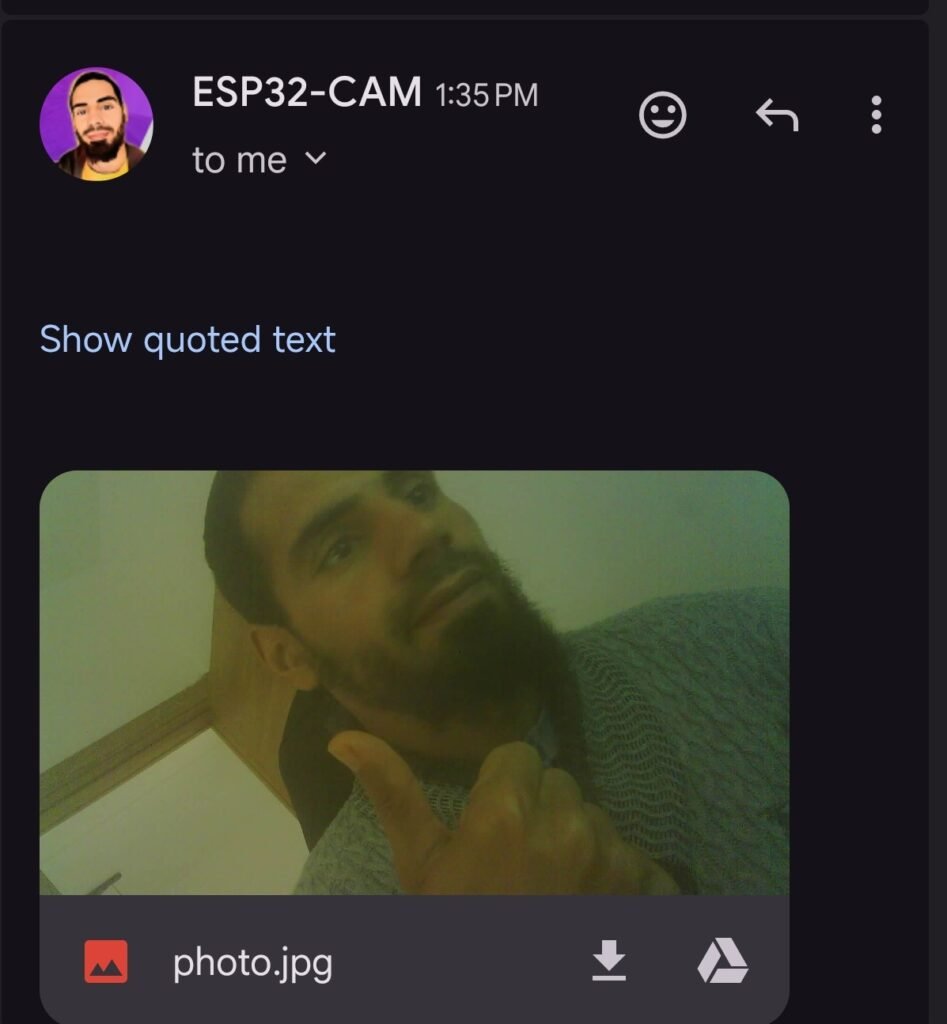
- Send it to your email
- Enter deep sleep
- To wake it up, connect GPIO13 to GND momentarily.
🐞 Troubleshooting
| Problem | Solution |
|---|---|
| Check PSRAM is enabled in Tools → PSRAM: “Enabled” | Check PSRAM is enabled in Tools → PSRAM: “Enabled” |
| Email not sending | Verify App Password, not your regular Gmail password |
| Photo is black | Increase flash delay or check flash GPIO (GPIO4) |
| Won’t wake up | Pull GPIO13 low (connect to GND) |
Conclusion
You now have a low-power surveillance camera that emails photos on demand. This project is perfect for remote monitoring, security systems, or smart doorbells. The deep sleep feature makes it practical for battery-powered installations.