Build a Smart IoT Mailbox: Display Emails on an LCD with ESP32
📩 Introduction
In our hyper-connected world, we often find ourselves constantly refreshing our inboxes, waiting for that one important email. But what if you could glance at a small screen on your desk instead of unlocking your phone?
In this project, we will build a Smart IoT Email Notifier using the powerful ESP32 microcontroller. The device will connect to WiFi, periodically check a specific email inbox (like Gmail), and display the latest email subject or sender on a classic 16×2 LCD screen.
Whether you are waiting for a verification code, a ticket confirmation, or just want to reduce screen time, this project is a perfect weekend build.
🧰 Required Components
- ESP32 Development Board (any variant: ESP32 DevKit, NodeMCU-32S, etc.)
- LCD Display 16×2 (with I2C adapter – highly recommended to save pins)
- Jumper Wires (Female to Female)
- USB Cable for power/programming
Before We Begin: If you’re completely new to the ESP32, I recommend checking out my previous blog post, an Ultimate ESP32 Beginner’s Guide. We’ve covered the basics of setting up your development environment, installing board support, and uploading your first program.
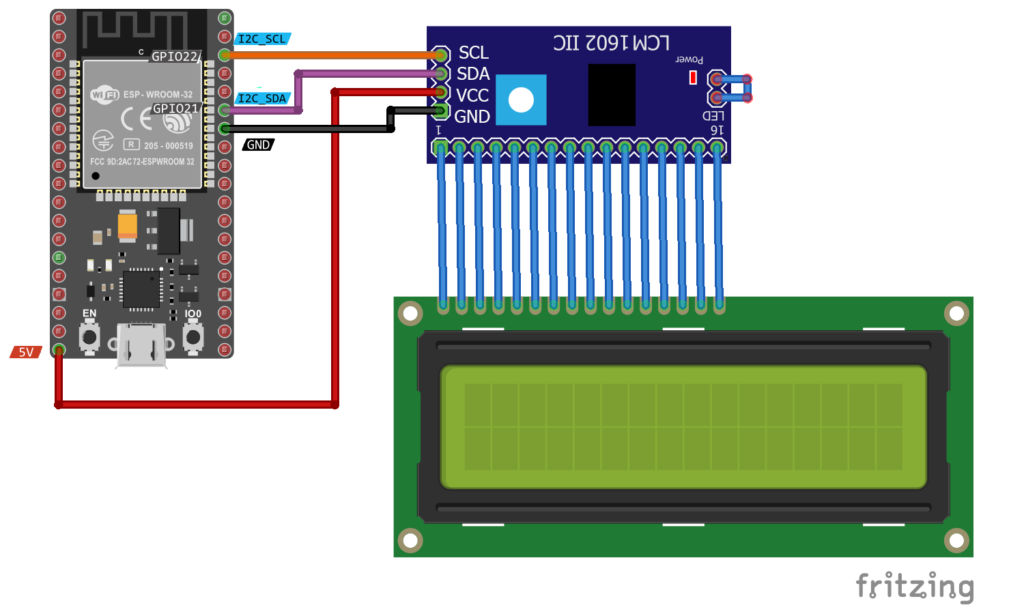
🔌 Circuit (ESP32 + I2C LCD)
| LCD I2C | ESP32 |
|---|---|
| VCC | 5V |
| GND | GND |
| SDA | GPIO 21 |
| SCL | GPIO 22 |
🔐 Important: Gmail Setup
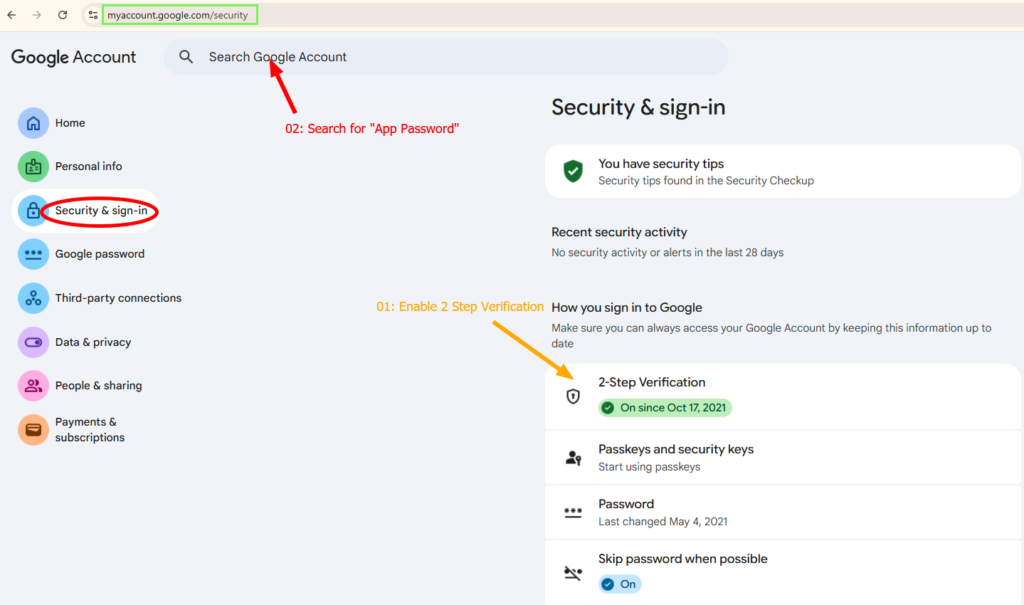
If you’re using Gmail, first go to: https://myaccount.google.com/security:
- Enable 2-Step Verification
- Generate an App Password
- Use the App Password in the code (NOT your real password)
IMAP Server:
imap.gmail.com
Port: 993
💻 Complete ESP32 Code
Copy the code and replace:
- WIFI_SSID
- WIFI_PASSWORD
- APP_PASSWORD
#include <Arduino.h>

#if defined(ESP32)
#include <WiFi.h>
#elif defined(ESP8266)
#include <ESP8266WiFi.h>
#endif

#include <ESP_Mail_Client.h>
#include <LiquidCrystal_I2C.h>

// --- LCD Setup ---
// Use address 0x27 or 0x3F. Run an I2C scanner if unsure.
LiquidCrystal_I2C lcd(0x3F, 16, 2);

// Timing variables for periodic email checking
unsigned long lastCheckTime = 0;
const unsigned long checkInterval = 60000; // Check every 60 seconds (60000 ms)

// =====================
// WiFi Credentials
// =====================
#define WIFI_SSID "YOUR_WIFI_SSID"
#define WIFI_PASSWORD "YOUR_WIFI_PASSWORD"

/* The imap host name e.g. imap.gmail.com for GMail or outlook.office365.com for Outlook */
#define IMAP_HOST "imap.gmail.com"

// The imap port
#define IMAP_PORT 993

/* The log in credentials */
#define AUTHOR_EMAIL "YOUR_EMAIL"
#define AUTHOR_PASSWORD "APP_PASSWORD"

// Store last email UID to detect new emails
int lastEmailUID = 0;

/* Callback function to get the Email reading status */
void imapCallback(IMAP_Status status);

/* Print all messages from the message list */
void printMessages(std::vector<IMAP_MSG_Item> &msgItems);

/* Check for new Email*/
void checkEmail();

/* Declare the global used IMAPSession object for IMAP transport */
IMAPSession imap;

void setup()
{
    Serial.begin(115200);

    // --- Initialize LCD ---
    lcd.init();
    lcd.backlight();

    lcd.setCursor(0, 0);
    lcd.print("Connecting WiFi");
    lcd.setCursor(0, 1);
    lcd.print("Please wait...");

    //Connect to WiFi
    WiFi.begin(WIFI_SSID, WIFI_PASSWORD);
    Serial.print("Connecting to Wi-Fi");

    while (WiFi.status() != WL_CONNECTED)
    {
        Serial.print(".");
        delay(300);
    }
    Serial.println();
    Serial.print("Connected with IP: ");
    Serial.println(WiFi.localIP());
    Serial.println();

    lcd.clear();
    lcd.setCursor(0, 0);
    lcd.print("WiFi Connected!");
    lcd.setCursor(0, 1);
    lcd.print("Ready.");
    delay(2000);
    lcd.clear();

    /*  Set the network reconnection option */
    MailClient.networkReconnect(true);

    /** Enable the debug via Serial port
     * 0 for no debugging
     * 1 for basic level debugging
     */
    imap.debug(1);

    /* Set the callback function to get the reading results */
    imap.callback(imapCallback);
    checkEmail();
}

void loop() {
  // Check for new email at the defined interval
  if (millis() - lastCheckTime >= checkInterval) {
    if (WiFi.status() == WL_CONNECTED) {
      checkEmail();
    } else {
      lcd.clear();
      lcd.setCursor(0, 0);
      lcd.print("WiFi Lost");
    }
    lastCheckTime = millis();
  }
}

void checkEmail() {
  Serial.println("Checking for new email...");
  lcd.clear();
  lcd.setCursor(0, 0);
  lcd.print("Checking Email...");

  /* Declare the Session_Config for user defined session credentials */
  Session_Config config;

  /* Set the session config */
  config.server.host_name = IMAP_HOST;
  config.server.port = IMAP_PORT;
  config.login.email = AUTHOR_EMAIL;
  config.login.password = AUTHOR_PASSWORD;

  /* Define the IMAP_Data object used for user defined IMAP operating options. */
  IMAP_Data imap_data;

  /* Set the storage to save the downloaded files and attachments */
  imap_data.storage.saved_path = F("/email_data");

  /** Set to enable the results i.e. html and text messaeges
   * which the content stored in the IMAPSession object is limited
   * by the option imap_data.limit.msg_size.
   * The whole message can be download through imap_data.download.text
   * or imap_data.download.html which not depends on these enable options.
   */
  imap_data.enable.html = false;
  imap_data.enable.text = true;

  /* Assign the attachment filename to compare, update firmware if it matches */
  imap_data.firmware_update.attach_filename = "firmware.bin";
  /* save (download) firmware to file? */
  imap_data.firmware_update.save_to_file = false;

  /* Set to enable the sort the result by message UID in the decending order */
  imap_data.enable.recent_sort = true;

  /* Set to report the download progress via the default serial port */
  imap_data.enable.download_status = true;

  /* Set the limit of number of messages in the search results */
  imap_data.limit.search = 5;

  /* Set the maximum size of message stored in*/
  imap_data.limit.msg_size = 512;

  /* Set the maximum attachments and inline images files size*/
  imap_data.limit.attachment_size = 1024 * 1024 * 5;

  /* Connect to the server */
  if (!imap.connect(&config, &imap_data))
  {
      lcd.clear();
      lcd.setCursor(0, 0);
      lcd.print("IMAP Conn Err");
      MailClient.printf("Connection error, Error Code: %d, Reason: %s\n", imap.errorCode(), imap.errorReason().c_str());
      return;
  }

  if (imap.isAuthenticated())
      Serial.println("Successfully logged in.");
  else
      Serial.println("Connected with no Auth.");

  /* Open or select the mailbox folder to read or search the message */
  if (!imap.selectFolder(F("INBOX")))
      return;

  /** Message UID to fetch or read e.g. 100.
   * In this case we will get the UID from the max message number (lastest message)
   */
  imap_data.fetch.uid = imap.getUID(imap.selectedFolder().msgCount());

  if(imap.getUID(imap.selectedFolder().msgCount()) == lastEmailUID){
    // No new messages found
    lcd.clear();
    lcd.setCursor(0, 0);
    lcd.print("No New Email");
    imap.empty();
    return;
  }

  lastEmailUID = imap.getUID(imap.selectedFolder().msgCount());
  /* Read or search the Email and close the session */
  MailClient.readMail(&imap);

  /* Clear all stored data in IMAPSession object */
  imap.empty();
}

/* Callback function to get the Email reading status */
void imapCallback(IMAP_Status status)
{
    /* Print the current status */
    Serial.println(status.info());

    /* Show the result when reading finished */
    if (status.success())
    {
        /* Print the result */
        /* Get the message list from the message list data */
        IMAP_MSG_List msgList = imap.data();
        printMessages(msgList.msgItems);

        /* Clear all stored data in IMAPSession object */
        imap.empty();
    }
}

void printMessages(std::vector<IMAP_MSG_Item> &msgItems)
{
    // Serial.println(imap.fileList());

    for (size_t i = 0; i < msgItems.size(); i++)
    {
        /* Iterate to get each message data through the message item data */
        IMAP_MSG_Item msg = msgItems[i];

        // --- Display on LCD ---
        lcd.clear();
        // Line 1: Sender (From)
        lcd.setCursor(0, 0);
        lcd.print("From:");
        lcd.print(msg.from);
        // Line 2: Subject
        lcd.setCursor(0, 1);
        lcd.print(msg.subject);

        Serial.println("****************************");
        MailClient.printf("Number: %d\n", msg.msgNo);
        MailClient.printf("UID: %d\n", msg.UID);

        // The attachment status in search may be true in case the "multipart/mixed"
        // content type header was set with no real attachtment included.
        MailClient.printf("Attachment: %s\n", msg.hasAttachment ? "yes" : "no");

        if (strlen(msg.from))
            MailClient.printf("From: %s\n", msg.from);
        if (strlen(msg.sender))
            MailClient.printf("Sender: %s\n", msg.sender);
        if (strlen(msg.to))
            MailClient.printf("To: %s\n", msg.to);
        if (strlen(msg.date))
            MailClient.printf("Date: %s\n", msg.date);
        if (strlen(msg.subject))
            MailClient.printf("Subject: %s\n", msg.subject);
  }
}
📚 Installing the Required Libraries
Before uploading the code to your ESP32, you need to install the necessary libraries in the Arduino IDE, or, in my case, in VSCode (PlatformIO).
Open your platformio.ini file and add:
lib_deps =
	marcoschwartz/LiquidCrystal_I2C@^1.1.4
	mobizt/ESP Mail Client@^3.4.24
Your full platformio.ini may look like this:
; PlatformIO Project Configuration File
;
;   Build options: build flags, source filter
;   Upload options: custom upload port, speed and extra flags
;   Library options: dependencies, extra library storages
;   Advanced options: extra scripting
;
; Please visit documentation for the other options and examples
; https://docs.platformio.org/page/projectconf.html

[env:nodemcu-32s]
platform = espressif32
board = nodemcu-32s
framework = arduino
monitor_speed = 115200
lib_deps =
	marcoschwartz/LiquidCrystal_I2C@^1.1.4
	mobizt/ESP Mail Client@^3.4.24
Once you save the file, “PlatformIO” will automatically install the library.
🧪 Build and Upload
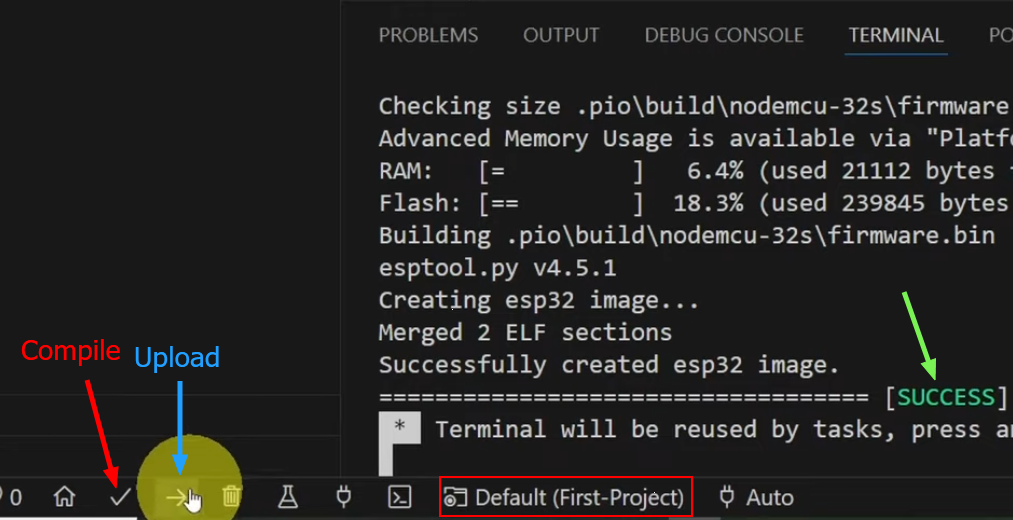
First, plug in your microcontroller via USB and click the Build button at the bottom bar: This checks your code for errors before uploading.
Next Click Upload or press: Ctrl + Alt + U
Wait for the “SUCCESS” Green message
If everything is correct, you should see on the lcd screen:
From: Sender Name
email subject
🧠 How the System Works
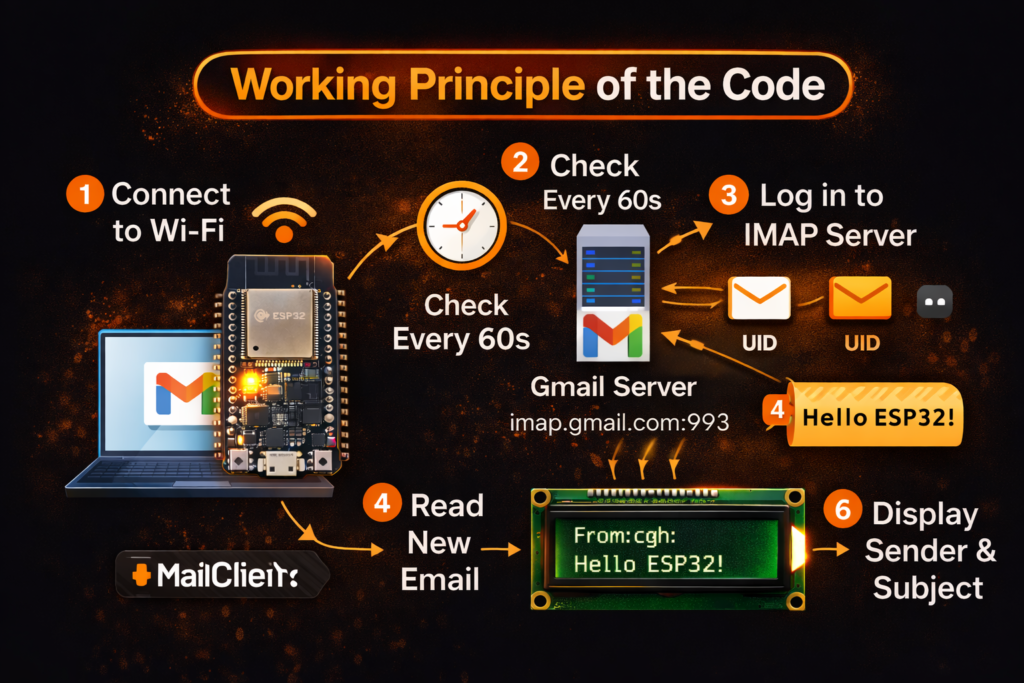
Here’s the working principle:
- The ESP32 connects to your WiFi network.
- It securely connects to your email server using IMAP (port 993, SSL).
- It selects the INBOX folder.
- It retrieves the UID of the latest email.
- It compares it with the previously stored UID.
- If the email is new:
- It downloads the message.
- The callback function processes the result.
- The LCD shows you the sender and subject.
Instead of repeatedly reading all emails, we use UID comparison to detect only new messages. This is efficient and professional.
⚡ Why This Project Is Powerful
With WiFi + email integration, your ESP32 becomes:
- A smart IoT notification board
- A remote communication terminal
- A mini embedded email client
And the best part? It runs standalone — no PC required.
📌 Final Thoughts
This project shows how powerful the ESP32 really is when connected to the internet. With just WiFi and a few lines of code, you can create interactive IoT systems that communicate globally.
If you build this project, consider expanding it into:
- A smart home alert system
- A server monitoring display
- A remote classroom notification board